Building up a website by using Hugo and GitHub
Table of Content
You can do the following instructions to build up a website by using Hugo and GitHub with Markdown files.
Preparing Hugo to generate a local website
You need to download and install Hugo, create a new website, and then add a theme. Afterwards, you can generate a local website with Markdown files.
Downloading Hugo
-
Navigate to https://gohugo.io/ and click Quick Start.
-
Click the install hyperlink to navigate to the Install Hugo page.
-
Click the Hugo Releases hyperlink to navigate to the GitHub page.
-
Scroll down to the Assets area to find the Hugo installation package for your computer.
For example, the Hugo installation package for 64-bit Windows operating system:

-
Save the downloaded ZIP file and un-zip the file in your local computer.
Installing Hugo
-
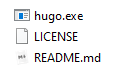
Open the Hugo installation package folder and you can see the following three files.
-
Copy the hugo.exe file to a newly created folder.
Note: Do not use space or non-English language words in the folder name or the upper level folders. For example, you can create a new folder as D:\Hugo\bin.
-
Open the computer cmd command panel and navigate to the new folder you just created.
-
Type hugo in the cmd command line and press Enter.
Expected outcome:
You may see the following error message and you can ignore it.
Error: Unable to locate config file or config directory. Perhaps you need to create a new site. Run "hugo help new" for details. -
Set the environment variable by adding the path of the new folder where the hugo.exe file exists.
-
To verify hugo installation, open a new cmd command panel and type hugo version.
Expected outcome:
Hugo version is displayed. It means that Hugo is installed successfully.
Creating a new site
-
Open the computer cmd command panel and navigate to the new folder containing the hugo.exe file. For example, D:\Hugo\bin.
-
To create a new site, enter the command:
hugo new site your-new-site-nameFor example:
hugo new site DocWebExpected outcome:
A new folder named as your-new-site-name (for example, DocWeb) is created, with multiple folders and files inside.
Adding a theme
-
Navigate to https://themes.gohugo.io/ to find a theme you like.
-
Click the theme to download a ZIP file to your local computer, and un-zip the theme ZIP file.
-
Copy the theme file to the themes folder which is created in Creating a new site.
-
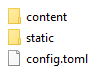
To use the theme format, copy three items (content, static and config.toml) in the exampleSite folder of the themes folder, and overwrite the three same items in the upper level folder which is rooted under your new site folder.
Preparing Markdown files
-
Navigate to the content folder which is rooted under your new site folder.
-
Edit the Markdown files.
Note: You can edit Markdown files by checking the instructions in Markdown instructions.
Generating a local website
-
Open the computer cmd command panel and navigate to the new folder containing the hugo.exe file. For example, D:\Hugo\bin.
-
Type the command line:
hugo serverExpected outcome:
You can view your website through localhost:1313.
Preparing GitHub
You need to create a new repository in GitHub, install Git and configure SSH key in GitHub.
Creating a new repository in GitHub
-
Navigate to https://github.com/ to register a new GitHub account.
-
Create a new repository.
Note: Your repository name must follow the format as “your-account-name.github.io”. For example, Bunny-Xiangli.github.io.
Installing Git
-
Navigate to https://git-scm.com/downloads/ to download the Git installation package for your computer.
Expected outcome:
A ZIP file (for example, Git-2.30.0.2-64-bit.exe) is automatically downloaded.
-
Un-zip the file and install Git with default configurations.
Expected outcome:
You can see that Git Bash and Git GUI applications are installed successfully.
Configuring SSH key in GitHub
-
Open the Git Bash application.
-
Enter the command:
cd ~/.ssh -
Enter the command:
ssh-keygen -t rsa -C "your-email-address"Expected outcome:
Two files (id_rsa and id_rsa.pub) are generated in the .ssh folder under your user account.
-
Log in to https://github.com/ as your GitHub account.
-
On the top-right corner, select Settings in your account drop-down menu.
-
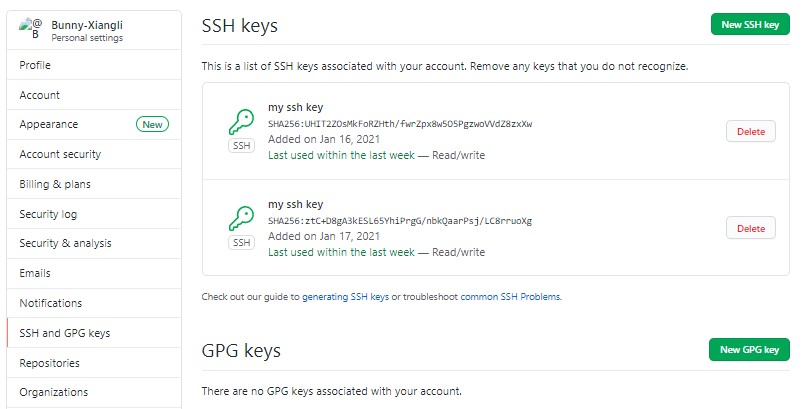
Click SSH and GPG keys on the left side panel.
-
Click New SSH key and add the content of id_rsa.pub file. For example, you can see the added SSH in the following image.
Building up an online website
-
Navigate to the folder which contains your Markdown files (for example, D:\Hugo\bin\DocWeb\content\posts).
-
Right-click and select Git Bash Here in the drop-down menu.

-
To link your theme with the GitHub repository, enter the command:
hugo --theme=your-github-theme --baseUrl="https://your-github-name.github.io"For example:
hugo --theme=hugo-theme-bootstrap4-blog --baseUrl="https://bunny-xiangli.github.io/"Expected outcome:
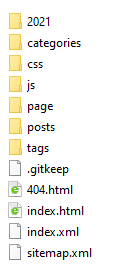
A public folder is created under your Hugo site folder, with multiple sub-folders and files used for generating HTML.
-
To navigate to the public folder, enter the command:
cd public -
To initiate GitHub, enter the command:
git init -
To add your local files to GitHub repository, enter the command:
git add . -
To commit files in Git repository, enter the command:
git commit -m 'first commit'In the command, you can replace first commit with your own descriptions.
-
To create the connection between your local and GitHub repositories , enter the command:
git remote add origin your-git-repsitory-nameFor example:
git remote add origin https://github.com/Bunny-Xiangli/Bunny-Xiangli.github.io.git -
To push your website to GitHub, enter the command:
git push -u origin master -
In your GitHub repository, go to Settings , and scroll down to find the GitHub Pages area.
-
Select Branch:master in the drop-down menu and click Save.
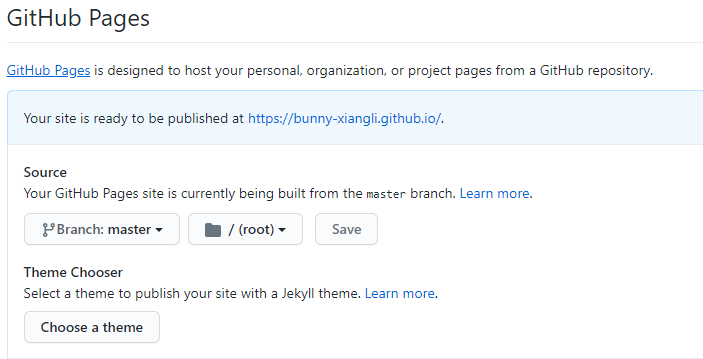
-
Navigate to the website of your GitHub Pages (for example, https://bunny-xiangli.github.io/).
Expected outcome:
You can view the online website successfully.